I am installing VS2008 in a virtual environment, so this may not be exactly what you would get, but the purpose is to identify if VS2008 does indeed work on Windows 7 and what the experience is like.
The first problem is that the auto run does not seam to function.
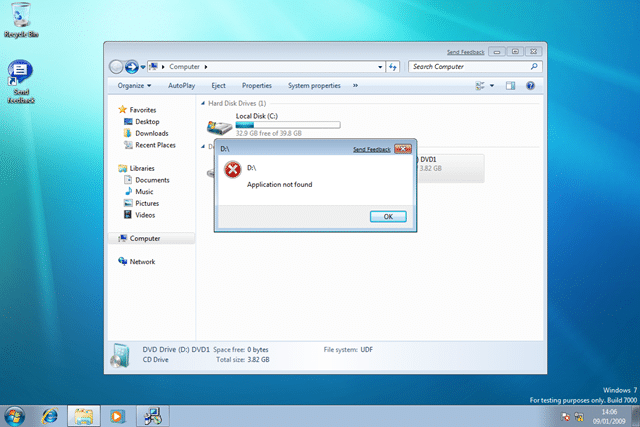
This can be rectified by browsing the CD / Image and running setup.exe
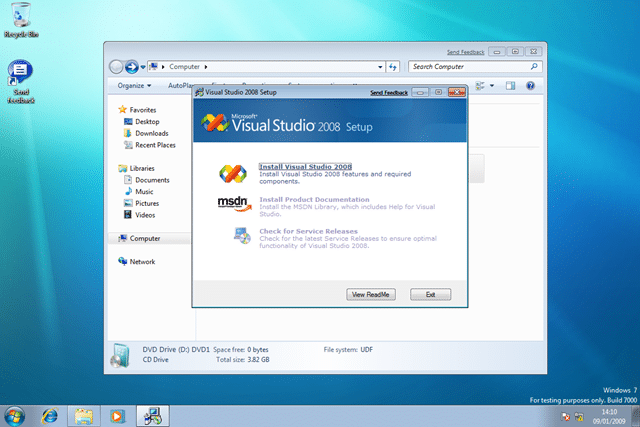
So far so good.
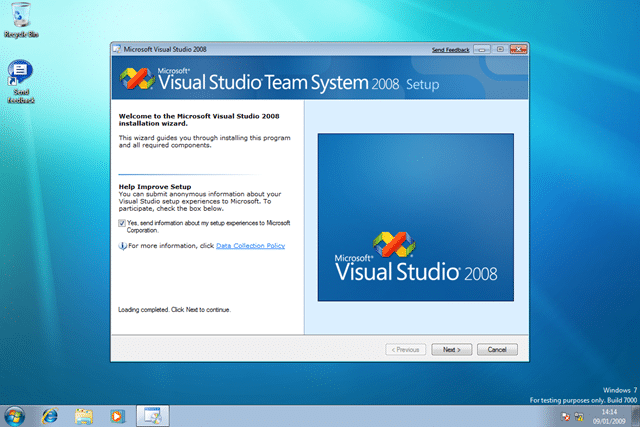
After you have accepted the licence agreement you need to select the installation components.
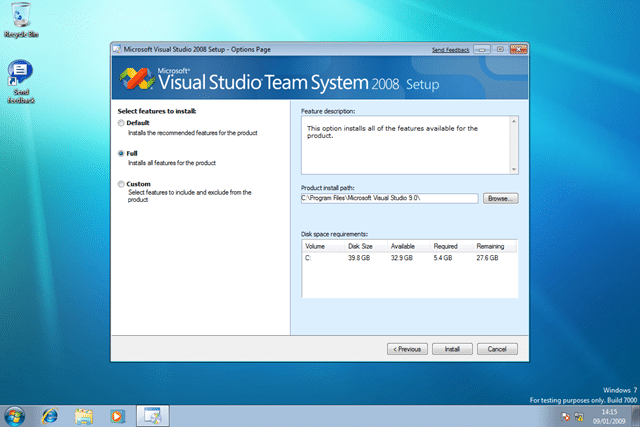
I am selecting Full so we can make sure it all goes on, but usually I remove SQL Express as I would add SQL Server developer edition later.
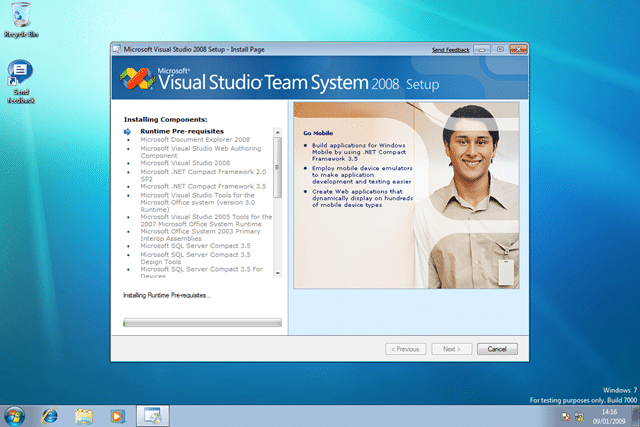
It’s that guy again :), we need to let this cook for “some time, or considerably longer”…
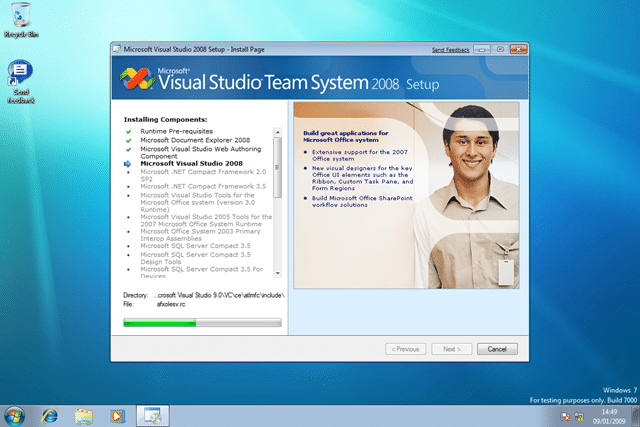
Some time later….
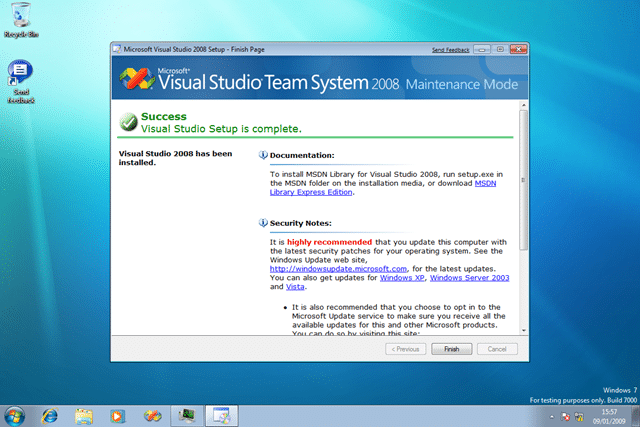
After some 2 hours (remember I am in a virtual computer)
I now have Visual Studio 2008 Team Suit installed…
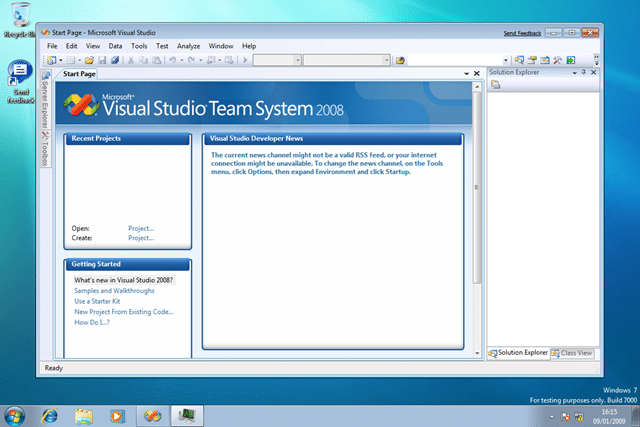
I will need to service pack it and check functionality, probably by working on the TFS Sticky Buddy project on it and making sure that I an still deploy and run on other platforms! That is for another day though…


